 Block Scene Button
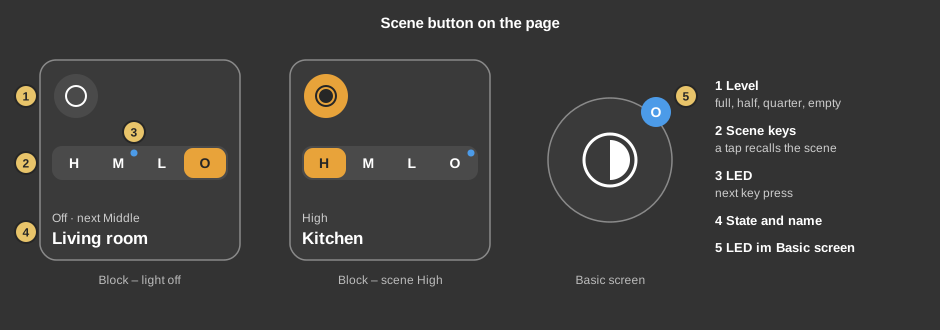
This control recalls the four light scenes of a room: High,
Middle, Low (dimmed) and Off. The same scenes can be
recalled at the push button; an LED dot shows what the next key press will do.
Operation
- Level: the symbol shows the scene currently active – a full
circle for High, half for Middle, a quarter for Low, an empty circle for Off.
If the light has been changed by hand, the half circle is shown.
- Scene keys: a tap on H, M, L or O
recalls the scene immediately. The active scene is highlighted; with the
light off this is O. Small tiles have no keys, a tap opens the
dialog instead.
- LED: the blue dot shows what the next key press does: with the light
on O (switch off), with the light off the scene suggested for the time
of day. The same LED lights up at the push button.
- State and name: for example High, Manual or
Off · next Middle.
- Basic screen: the circle shows the level, the letter at the edge the
LED.
A tap next to the keys opens the dialog. If Short click is set to
On/Off, a short tap toggles instead – the light is switched off if it
is on, otherwise the suggested scene is recalled – and a long press opens
the dialog.
The dialog
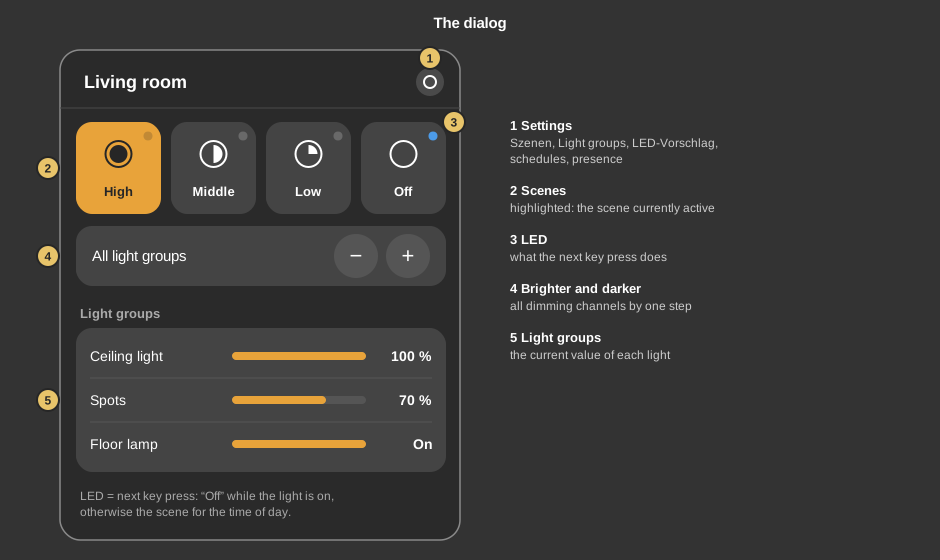
- Gear: opens the settings, see below.
- Scenes: the four keys recall the scene immediately.
- LED: as on the tile.
- All light groups − / +: dims all dimming channels of the room one
step darker or brighter. Switched lights stay as they are; when dimming down,
a light that is off stays off.
- Light groups: the current value of each light.
Settings
Behind the gear you find:
- Scenes: the value of every light group for each scene – percent for
dimmed lights, On or Off for switched lights. Take over current light
sets the values the lights have right now. Copy to copies all values to
another scene and overwrites its values.
- Light groups: which of the linked lights belong to the room and what
they are called. A light group that is switched off is not switched by the
scenes and does not count for “light on”. An empty name restores the
name from the address.
- LED suggestion: from which time of day which scene is suggested while
the light is off – for example Middle in the morning, High during the day,
Low at night. Before the first time of day the last one applies. Up to eight
times of day, at least one remains.
- Schedules: each schedule recalls a scene. A new schedule is set to
No action and switches nothing until a scene is selected.
- Presence: one scene per presence state, recalled when the state
changes. By default no state has a scene – a change of presence then does
not affect the light.
Save transfers the settings to the controller; they are kept after a
restart. More about schedules and presence under
Presence.
Setup
This section is intended for the installer.
The control is linked to the
function block Block Scene Button: first
create the function block, link the channels to the lights and generate the
addresses, then right-click the control and select the function block. Without
a link no dialog opens.
- The control has no addresses of its own. The keys write the inputs
Key short, On/Off and Dim of the function block, the
display comes from its outputs. If an address is missing there, the Studio
shows an orange frame – then generate the addresses on the function
block.
- A channel without an address is not offered in the visualisation.
Parameters
| View |
Block or Basic screen. |
| Text |
Caption of the tile and title of the dialog, default
Light. A line break is inserted with \n, two lines at
most. |
| Short click |
Dialog (default): a tap next to the keys opens the
dialog. On/Off: a short tap toggles, a long press opens the
dialog. |
| Names |
Names of the scenes: High/Middle/Low/Off (default)
or Bright/Medium/Dimmed/Off. Narrow keys and the circle on the basic
screen show the first letters of these names: H M L O or
B M D O. |
| Step − / + |
How much a tap on − or + dims: 6 %, 12 %
(default) or 25 %. |
Address links
All addresses are located on the
function block and are taken over
when linking.
See also General properties of all
controls.